Volvo Tech Tool Diagnostic VM for Trucks

Volvo Tech Tool Diagnostic VM - Heavy Duty OBD2 Suite 2.8.360

Volvo Tech Tool Diagnostic VM for Trucks
Volvo Tech Tool Diagnostic VM - Heavy Duty OBD2 Suite 2.8.360

Post #1

Bin

Thread Owner
Administrator
Joined
03.05.2025
Messages
1,848
Reaction score
50,804
New release thread for Volvo Tech Tool Diagnostic VM for Trucks: discuss, share feedback, and get help.


Volvo Tech Tool Diagnostic VM for Trucks​#

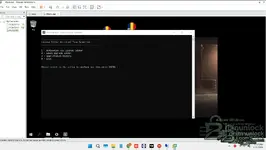
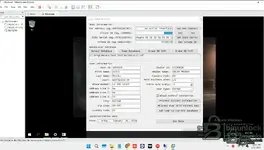
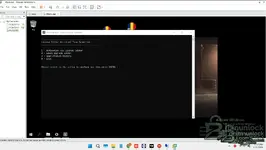
v2.8.360 — Preconfigured VMware image with guided tests, live data, and parameter setup

A fully configured VMware image of Volvo Premium Tech Tool for heavy-duty platforms. Built for quick startup with VOCOM I/II and compatible RP1210/J2534 adapters, it supports identification, guided diagnostics, calibrations, and safe rollback via snapshots.

Highlights
  • VIN/chassis identification with full ECU tree and session logs
  • DTC...

Frequently Asked Questions​#

Which Windows version is recommended?
For maximum stability during ECU flashing and diagnostics, a clean installation of Windows 10 (64-bit) is recommended.
Is it compatible with J2534 PassThru?
Most modern software versions support standard J2534 interfaces like Scanmatik 2 Pro, OpenPort 2.0, and specific VCI adapters.

What's inside:
  • Overview & screenshots
  • Version history and compatibility
  • Download link and setup notes

👉 View full details and download — Volvo Tech Tool Diagnostic VM for Trucks
 
Ratings and Reviews
Total ratings: 0

Post #4

tried as well how do you do?

Re: Activation Issues

Usually, these pre-configured VMs come with a specific асtivа*** tool or раtсh already present on the desktop or root C: drive. You shouldn't normally need to manually mess with the standard Volvo license editor unless the specific instructions for this release say so.

A few standard troubleshooting steps for these VMs:

  • Disconnect Internet: Ensure the VM's network adapter is disconnected or set to "Host-only" before attempting activation. It must not call home.
  • Locate асtivа***: Look for a folder on the VM desktop named "асtivа***", "раtсh", or similar. Run the tool inside as Administrator.
  • ReadMe: Check for a "ReadMe.txt" file on the desktop and follow those steps exactly.

If you are still stuck, please post a screenshot of the specific error you are seeing in the license editor so we can see exactly where it's failing.
 

Post #5

No read me file , no асtivа*** or раtсh
Screenshot 2026-01-31 120716.webp
 

Attachments

  • Screenshot 2026-01-31 120546.webp
    Screenshot 2026-01-31 120546.webp
    46.7 KB · Views: 106

Post #6

No read me file , no асtivа*** or patch2442

That is highly unusual for a "pre-configured" VM release. Typically, the асtivа*** or instructions are sitting right on the desktop to make it plug-and-play.

If it's definitely not on the desktop, check these locations inside the VM:

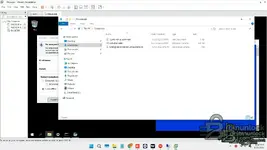
  • Open File Explorer and check the root C:\ drive. Sometimes folders like "Tools" or "раtсh" are placed directly there to hide them from the desktop view.
  • Check the Downloads folder inside the VM's user account.

Did the original download archive contain only the VMware disk files (.vmdk/.vmx), or were there other files included outside the VM image? Sometimes instructions are in a separate text file that sits on your host machine next to the VM files.

If there is truly nothing there, you need to go back to the source link you provided in post #1 and re-read the release notes on that page very carefully. There might be a specific, non-obvious activation procedure listed there that doesn't rely on a tool inside the VM.
 

Post #7


I am not sure what "2446" indicates.

If you are still stuck finding the activation tools, please confirm if you have checked the specific locations mentioned in the previous post:

  • The root C:\ drive inside the VM (look for hidden folders).
  • The Downloads folder inside the VM's user account.
  • The original download page on the website for any instructions listed outside of the VM image itself.

We need to know the outcome of these checks to help you further. If those locations are empty, the VM image might be incomplete, or the instructions are hosted elsewhere.
 

Post #10

yes must be there pictures...

Understood. Unfortunately, the pictures did not attach correctly to your previous posts; we only saw the reference numbers.

Without seeing what you are seeing inside the VM, it is very difficult to guide you.

Please try attaching the screenshots again. In the reply box, look for a button that says Attach files (usually with a paperclip icon) to upload your images directly to the post.

We need to see screenshots of:
  • Your VM desktop.
  • The contents of the C:\ root drive inside the VM.
 

Post #11

can you see now? i attached them
 

Attachments

  • Screenshot 2026-01-31 121754.webp
    Screenshot 2026-01-31 121754.webp
    59.9 KB · Views: 115
  • Screenshot 2026-01-31 120716.webp
    Screenshot 2026-01-31 120716.webp
    80.4 KB · Views: 101
  • Screenshot 2026-01-31 120546.webp
    Screenshot 2026-01-31 120546.webp
    46.7 KB · Views: 103
  • Screenshot 2026-01-31 1211321.webp
    Screenshot 2026-01-31 1211321.webp
    45 KB · Views: 88

Post #12

can you see now? i attached them

No, unfortunately, there are still no images showing up in your post. It just shows your text.

Sometimes the forum attachment system fails if the images are too large or in the wrong format.

Try uploading your screenshots to a free external image host like imgur.com or postimages.org. Once uploaded, they will give you BBCode links (usually labeled as "BBCode for forums" or wrapped in [img]...[/img] tags). Copy and paste those links directly into your reply here.
 

Post #13


Okay, the images are visible now. Thanks for uploading them to an external host.

You are correct. Based on those screenshots, the usual locations (Desktop, Downloads, C:\ root) are empty of any obvious асtivа*** or readme files. This is poor practice for a "ready-to-run" VM release.

Before giving up on this image, check these less common hiding spots inside the VM:

  • C:\Users\Public\Desktop (Sometimes icons are hidden here but set not to show on the main desktop).
  • C:\ProgramData (This is a hidden folder. You need to enable "Show hidden files, folders, and drives" in Folder Options to see it. Look for a Volvo or раtсh related folder inside).
  • Check inside the main installation directory: C:\Program Files (x86)\Volvo\Tech Tool\ to see if there is a раtсh executable sitting in the program folder itself.

If you check those three locations and still find nothing, the VM image you downloaded is incomplete. You will have to go back to the original forum thread or website where you got the tоrre**/download link and ask the uploader specifically where the activation method is located for that release.
 

Post #15

i got it here...

That is good news, but it is a little unclear what you mean.

Do you mean you found the асtivа*** in one of the locations suggested above? If yes, please confirm where you found it (e.g., C:\ProgramData) so others reading this thread know where to look in the future.

Or do you mean you downloaded the VM from this forum? If so, you need to go back to the specific thread where you found the download link. The instructions or the password for the асtivа*** are almost always listed in the very first post of that thread by the thread starter. We cannot know which specific VM you downloaded just by looking at screenshots of an empty desktop.
 

Post #17

I downloaded the vm in the Vm section 1.12 worked but i had KG for it, really need 2.8

Understood. You are saying you got this 2.8 VM from this forum section.

A kеу*** (KG) for version 1.12 will not work on version 2.8. The activation methods are completely different.

Since your screenshots confirm the VM drive is basically empty of раtсh files, the solution is definitely not inside the VM itself right now.

You must go back to the exact thread in the "VM section" where you found the download link for this 2.8 image.

Look carefully at the first post of that thread. The uploader will have specified the activation method there. It usually involves one of these scenarios:
  • There is a separate small download link in that thread containing the раtсh/асtivа***.
  • You have to send your HWID (Hardware ID) to the uploader via Private Message (PM) to get a license file.
  • There is a specific text file with instructions hidden somewhere I didn't ask you to look yet (unlikely based on your screenshots, but possible).

Without knowing exactly which thread you downloaded it from, nobody here can give you the specific асtivа*** for that build. Go back to the source thread.
 

Post #18

New release thread for Volvo Tech Tool Diagnostic VM for Trucks: discuss, share feedback, and get help.


Volvo Tech Tool Diagnostic VM for Trucks​

v2.8.360 — Preconfigured VMware image with guided tests, live data, and parameter setup


What's inside:
  • Overview & screenshots
  • Version history and compatibility
  • Download link and setup notes

👉 View full details and download — Volvo Tech Tool Diagnostic VM

New release thread for Volvo Tech Tool Diagnostic VM for Trucks: discuss, share feedback, and get help.


Volvo Tech Tool Diagnostic VM for Trucks​

v2.8.360 — Preconfigured VMware image with guided tests, live data, and parameter setup


What's inside:
  • Overview & screenshots
  • Version history and compatibility
  • Download link and setup notes

👉 View full details and download — Volvo Tech Tool Diagnostic VM for Trucks
It's working thank you so much
 

Post #19

It's working thank you so much

Great news! Glad you got it sorted out.

Just a quick tip since you are running this in a VM:

Take a Snapshot immediately.

Now that PTT 2.8 is activated and working, go to your VM software (VMware/VirtualBox) and create a snapshot right now. Call it "Fresh Install - Activated".

If the installation ever gets corrupted or the license breaks in the future, you can revert to this snapshot in seconds rather than downloading and setting everything up again.

Happy diagnosing!
 
Activity
So far there's no one here
Back