ISTA+ 4.57.30 installation problem

  • Thread starter Thread starter Juhnu
  • Start date Start date
  • Tagged users Tagged users None

Post #1

Juhnu

Watchlisted
Thread Owner
Joined
19.04.2026
Messages
4
Reaction score
2
Location
Finland
I follow this instruction exactly, but STEP 5 i get lost. Any options to add registy key wont appear.
Any advice?
Thanks.

BMW ISTA‑PLUS 4.57.30 — Installation & Setup Guide

Important notes:
  • Run as administrator only.
  • OS: Windows 10/11 x64.
  • Standalone operation (no need for standard tools or EDIABAS).

Step 1. Extract main archive
1. Unpack ISTA.rar to:
C:\ISTA\

Step 2. Create shortcut
1. Make a desktop shortcut for:
C:\ISTA\TesterGUI\bin\Release\ISTAGUI.exe

Step 3. Extract config data
1. Go to:
C:\ISTA+4.57.30\config\
2. Unpack BMW.rar to:
C:\ProgramData\

Step 4. Set system variables
1. Run as admin:
ISPIDATA System Variables

Step 5. Select operation mode

Option A. Diagnostics only
1. Add registry key:
ISTA+ 4.57.30 diagnostic only

Option B. Full programming
1. Add registry key:
ISTA+ 4.57.30 full programming

Note: All required data is included (no extra lite data needed).

Step 6. Install PSDZdata (for programming)
1. Download full PSDZdata pack (e.g., from:
https://binunlock.com/resources/psdzdata-full-ecu-programming-data-pack-for-e-sys.229/)
2. Extract to:
C:\ISTA\PdZ\data_swi\

Step 7. D‑CAN interface setup
1. Before launching ISTA, go to:
C:\ISTA\tool\
2. Run:
Switch ICOM-ENET or DCAN (com3)
3. Press any key to select interface.
4. Set parameters:
- Interface: COM3
- Latency timer: 1

To revert to ICOM‑ENET: run the switch again and press any key.

Final steps:
1. Always launch ISTA as administrator.
2. System is ready for use.

Warning:
  • This is the latest version, not fully tested.
  • Exercise caution when programming ECUs.
 
Ratings and Reviews
Total ratings: 0

Post #2

I follow this instruction exactly, but STEP 5 i get lost. Any options to add registy key wont appear...

Hey,

Step 5 is referring to .reg registry files that should have been included in the original download package (usually inside the C:\ISTA+4.57.30\config\ folder or a similar subfolder). They are typically named something like:

  • ISTA+ 4.57.30 diagnostic only.reg
  • ISTA+ 4.57.30 full programming.reg

What to check:

  1. Go back to your extracted archive and look through all subfolders — especially config, tools, registry, or reg folders — for .reg files.
  2. If you find them, right-click → Run as administrator → confirm the merge into registry.
  3. If the .reg files are simply missing from your download, then the archive you got is incomplete. You'll need to re-download the full package or find the missing registry files separately.

If you can't find the .reg files at all:

You can create them manually. The typical registry entries for ISTA+ 4.57.30 standalone mode go under:

Code:
HKEY_LOCAL_MACHINE\SOFTWARE\WOW6432Node\BMWGroup\ISPI\ISTA

Key values usually include things like:
  • DataPath — pointing to your ISTA data folder
  • IconPath — path to ISTA icons
  • PdZDataPath — path to PSDZdata (for programming mode)
  • OperationMode — value that switches between diagnostic-only and full programming

However, the exact values and keys depend on the specific rера** you downloaded. Guessing wrong here can cause ISTA to not launch at all.

My advice:

  1. Double-check every folder in your extracted archive for .reg files — use Windows search for *.reg inside the ISTA folder tree.
  2. If they're truly missing, post back with a screenshot or list of what's inside your config folder and the root of the archive, and we can help you figure out what's missing.
  3. Also mention where exactly you downloaded this package from, so someone with the same version can confirm the correct file structure.
 

Post #4

I have reg files yes but instruction advices me to choose operation mode first in step 5. How?

Ah, I see what you mean now — the guide says "Add registry key" and lists two options (A or B), but doesn't explain how to actually choose between them. It's simpler than it looks:

You just pick one and double-click the corresponding .reg file:

  • Option A — Diagnostics only: Double-click the .reg file named something like ISTA+ 4.57.30 diagnostic only.reg
  • Option B — Full programming: Double-click the .reg file named something like ISTA+ 4.57.30 full programming.reg

That's it — there's no separate menu or UI to "select" the mode. The .reg file is the selection. It writes the appropriate registry values that tell ISTA which mode to run in.

Steps:
  1. Decide what you need — if you only need to read codes/diagnostics, go with Option A. If you need ECU coding/programming (and you have PSDZdata from Step 6), go with Option B.
  2. Right-click the matching .reg file → Run as administrator
  3. Click Yes when Windows asks to confirm the registry merge.
  4. Done — move on to Step 6 (if you chose full programming) or Step 7.

Note: You can always switch later by running the other .reg file — it will just overwrite the previous registry values.
 

Post #5

Je suis scrupuleusement les instructions, mais à l'étape 5, je suis bloqué. Aucune option pour ajouter une clé de registre n'apparaît.
Des conseils ?
Merci.

BMW ISTA‑PLUS 4.57.30 — Guide d'installation et de configuration

Remarques importantes :

  • Exécuter uniquement en tant qu'administrateur .
  • Système d'exploitation : Windows 10/11 x64.
  • Fonctionnement autonome (aucun besoin d'outils standard ni d'EDIABAS).

Étape 1. Extraire l'archive principale
1. Déballez ISTA.rarpour :
C:\ISTA\

Étape 2. Créer un raccourci
1. Créez un raccourci sur le bureau pour :
C:\ISTA\TesterGUI\bin\Release\ISTAGUI.exe

Étape 3. Extraire les données de configuration
1. Allez à :
C:\ISTA+4.57.30\config\
2. Déballez BMW.rarpour :
C:\ProgramData\

Étape 4. Définir les variables système
1. Exécuter en tant qu'administrateur :
ISPIDATA System Variables

Étape 5. Sélectionner le mode de fonctionnement

Option A. Diagnostic uniquement
1. Ajouter une clé de registre :
ISTA+ 4.57.30 diagnostic only

Option B. Programmation complète
1. Ajouter une clé de registre :
ISTA+ 4.57.30 full programming


Étape 6. Installer PSDZdata (pour la programmation)
1. Téléchargez le pack PSDZdata complet (par exemple, depuis :
https://binunlock.com/resources/psdzdata-full-ecu-programming-data-pack-for-e-sys.229/)
2. Extraire vers :
C:\ISTA\PdZ\data_swi\

Étape 7. Configuration de l'interface D-CAN
1. Avant de lancer ISTA, rendez-vous sur :
C:\ISTA\tool\
2. Courir :
Switch ICOM-ENET or DCAN (com3)
3. Appuyez sur n'importe quelle touche pour sélectionner l'interface.
4. Définir les paramètres :
- Interface : COM3
- Délai de latence : 1


Dernières étapes :
1. Lancez toujours ISTA en tant qu'administrateur.
2. Le système est prêt à l'emploi.

Avertissement:
  • Il s'agit de la dernière version, non entièrement testée .
  • Faites preuve de prudence lors de la programmation des calculateurs.
Bonjour, pouvez-vous m'aider ?
 

Attachments

  • 1.webp
    1.webp
    57.1 KB · Views: 57
  • 2.webp
    2.webp
    57.1 KB · Views: 56
  • 3.webp
    3.webp
    56.3 KB · Views: 48
  • 4.webp
    4.webp
    60.7 KB · Views: 52
  • 5.webp
    5.webp
    56.4 KB · Views: 48
  • 6.webp
    6.webp
    60.4 KB · Views: 48
  • 7.webp
    7.webp
    45.1 KB · Views: 50
  • 8.webp
    8.webp
    79.5 KB · Views: 61

Post #6

Bonjour, pouvez-vous m'aider ?

Bonjour,

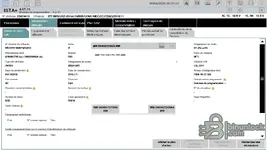
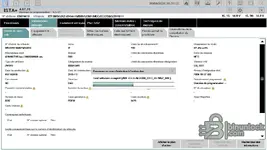
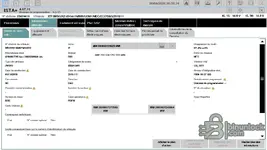
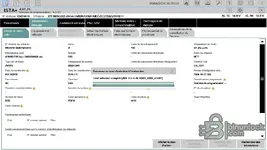
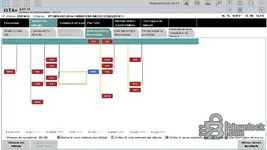
D'après vos captures d'écran, ISTA+ 4.57.21 fonctionne et est connecté à votre BMW X2 sDrive18i (F39, B38, 2018). Le diagnostic tourne, l'arbre des boîtiers électroniques est visible, et le scan des défauts est terminé.

Quel est exactement votre problème ?

En regardant vos images, je remarque plusieurs choses :

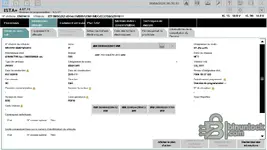
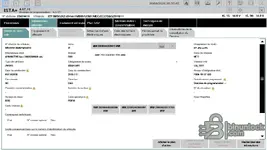
1. Kilométrage aberrant
Le kilométrage affiché est 4 294 967 295 km — c'est la valeur maximale d'un entier 32 bits non signé (0xFFFFFFFF). Cela signifie que la lecture du kilométrage ne se fait pas correctement. C'est souvent lié à :
  • Un problème de communication partielle avec le KOMBI (combiné d'instruments)
  • Une connexion via ENET/ICOM qui ne lit pas correctement certaines valeurs
  • Un souci de compatibilité de la version ISTA avec le véhicule

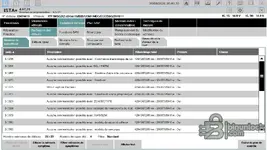
2. 22 défauts de communication
Tous vos défauts sont des "Aucune communication possible avec..." — HKL/HKFM, Headunit, ZGW/BCP/IPB, GWS/BZM, KAFAS, caméra, module remorque, etc.

Cela peut indiquer :
  • Connexion via D-CAN uniquement — beaucoup de ces modules (Headunit, KAFAS, ZGW, etc.) sont sur le réseau Ethernet du véhicule et ne sont pas accessibles via D-CAN/OBD seul. Pour un F39, il faut idéalement un ICOM ou un câble ENET pour accéder à tous les boîtiers.
  • Ou un problème réel sur le véhicule (bus MOST coupé, etc.) — mais 22 défauts de communication en même temps, c'est plus probablement une limitation de l'interface utilisée.

Pouvez-vous préciser :
  • Quelle interface utilisez-vous ? (ICOM, ENET, K+DCAN ?)
  • Quel est le problème exact que vous essayez de résoudre sur le véhicule ?
  • Est-ce que ces défauts de communication sont votre question, ou avez-vous un autre souci ?

Avec ces infos je pourrai mieux vous orienter.
 

Post #7

Bonjour,

D'après vos captures d'écran, ISTA+ 4.57.21 fonctionne et est connecté à votre BMW X2 sDrive18i (F39, B38, 2018). Le diagnostic tourne, l'arbre des boîtiers électroniques est visible, et le scan des défauts est terminé.

Quel est exactement votre problème ?

En regardant vos images, je remarque plusieurs choses :

1. Kilométrage aberrant
Le kilométrage affiché est 4 294 967 295 km — c'est la valeur maximale d'un entier 32 bits non signé (0xFFFFFFFF). Cela signifie que la lecture du kilométrage ne se fait pas correctement. C'est souvent lié à :
  • Un problème de communication partielle avec le KOMBI (combiné d'instruments)
  • Une connexion via ENET/ICOM qui ne lit pas correctement certaines valeurs
  • Un souci de compatibilité de la version ISTA avec le véhicule

2. 22 défauts de communication
Tous vos défauts sont des "Aucune communication possible avec..." — HKL/HKFM, Headunit, ZGW/BCP/IPB, GWS/BZM, KAFAS, caméra, module remorque, etc.

Cela peut indiquer :
  • Connexion via D-CAN uniquement — beaucoup de ces modules (Headunit, KAFAS, ZGW, etc.) sont sur le réseau Ethernet du véhicule et ne sont pas accessibles via D-CAN/OBD seul. Pour un F39, il faut idéalement un ICOM ou un câble ENET pour accéder à tous les boîtiers.
  • Ou un problème réel sur le véhicule (bus MOST coupé, etc.) — mais 22 défauts de communication en même temps, c'est plus probablement une limitation de l'interface utilisée.

Pouvez-vous préciser :
  • Quelle interface utilisez-vous ? (ICOM, ENET, K+DCAN ?)
  • Quel est le problème exact que vous essayez de résoudre sur le véhicule ?
  • Est-ce que ces défauts de communication sont votre question, ou avez-vous un autre souci ?

Avec ces infos je pourrai mieux vous orienter.
I have an original BMW Icom Next sensor. I've already tested it with an earlier version of ISTA-D and it works perfectly.

The communication issue with the vehicle is probably related to the software installation. But I don't understand what I missed...
 

Post #8

I have an original BMW Icom Next sensor. I've already tested it with an earlier version of ISTA-D an...

Ok—if your original ICOM Next works perfectly with an older ISTA-D version, then the hardware/network part is OK. A communication-heavy symptom after installing a newer ISTA+ build is very often caused by one of these: wrong/unfinished installation components, missing/incorrect “tools” services, broken connection settings, or a partial ISTA install.

To pinpoint what you missed, please answer these (quick, but important):

  • What exact ISTA+ version is installed now? (you mentioned 4.57.x earlier—exact build if possible)
  • ICOM Next firmware version (from ICOM Toolbox / device info)
  • Did you install ISTA+ as “ISTA-D” or “ISTA+ Diagnostic” (and did you install PSdZdata for coding/programming too, or only data for diagnostics)?
  • Are you connecting via ENET/Ethernet (ICOM), not via K+DCAN/ODBD?
  • When you connect, does ISTA show the KOMBI + all modules, or only a subset?

Meanwhile, here are the most common fixes for this specific “software installation → lots of ‘no communication’” situation:

1) Re-check PSdZdata completeness (Diagnostic vs Full)
If you installed only the “wrong” data pack or a partial one, ISTA may still start but won’t properly address modules.

  • For a diagnostic-only job, you still must have correct “PSdZdata/ISTA support” installed for your vehicle.
  • If you installed programming data as well, make sure the folder structure matches what your ISTA expects.

2) Clean reinstall the ISTA+ data/components
Instead of re-running the installer over the top, do a clean reinstall of the missing part:
  • uninstall ISTA+
  • reinstall
  • reinstall PSdZdata (the correct one for your ISTA build)
  • reboot

(Yes it’s annoying, but when communication faults appear en masse, it’s usually data/services mismatch.)

3) Verify ISTA services are running
On the PC:
  • Services related to ISTA/EC-APPS must be running (ICOM communication and DB services).
If services are stopped or crashed, you can get “no communication possible” across many ECUs.

4) Run ISTA as Administrator + disable firewall filtering (temporarily)
Windows firewall/AV sometimes blocks the local ISTA components after an update.
Temporarily test by disabling firewall/AV and then test again (don’t leave it disabled).

5) Rebind the ICOM connection inside ISTA
Inside ISTA connection settings, re-select the interface/ICOM and re-run “Check connection”.

6) Check Windows network mode / adapter permissions
ICOM Next uses an Ethernet link. Make sure:
  • you’re not using a “virtual adapter” only
  • the ICOM adapter has correct permissions
  • there’s no VPN/driver conflict

---

If you upload (or paste) the exact first communication error line from your log (or a screenshot of “Communication” / “Connection check” section), I can tell you which component is failing.

But the fastest path right now: confirm exact ISTA+ build and whether PSdZdata diagnostic-only or full was installed for that exact build, then we’ll narrow it down.
 

Post #9

I follow this instruction exactly, but STEP 5 i get lost. Any options to add registy key wont appear.
Any advice?
Thanks.

BMW ISTA‑PLUS 4.57.30 — Installation & Setup Guide

Important notes:

  • Run as administrator only.
  • OS: Windows 10/11 x64.
  • Standalone operation (no need for standard tools or EDIABAS).

Step 1. Extract main archive
1. Unpack ISTA.rar to:
C:\ISTA\

Step 2. Create shortcut
1. Make a desktop shortcut for:
C:\ISTA\TesterGUI\bin\Release\ISTAGUI.exe

Step 3. Extract config data
1. Go to:
C:\ISTA+4.57.30\config\
2. Unpack BMW.rar to:
C:\ProgramData\

Step 4. Set system variables
1. Run as admin:
ISPIDATA System Variables

Step 5. Select operation mode

Option A. Diagnostics only
1. Add registry key:
ISTA+ 4.57.30 diagnostic only

Option B. Full programming
1. Add registry key:
ISTA+ 4.57.30 full programming


Step 6. Install PSDZdata (for programming)
1. Download full PSDZdata pack (e.g., from:
https://binunlock.com/resources/psdzdata-full-ecu-programming-data-pack-for-e-sys.229/)
2. Extract to:
C:\ISTA\PdZ\data_swi\

Step 7. D‑CAN interface setup
1. Before launching ISTA, go to:
C:\ISTA\tool\
2. Run:
Switch ICOM-ENET or DCAN (com3)
3. Press any key to select interface.
4. Set parameters:
- Interface: COM3
- Latency timer: 1


Final steps:
1. Always launch ISTA as administrator.
2. System is ready for use.

Warning:
  • This is the latest version, not fully tested.
  • Exercise caution when programming ECUs.
Does anyone have VM disk image of all BMW software (ISTA, E-Sys, ETK, etc.) already installed?
 

Post #10

I follow this instruction exactly, but STEP 5 i get lost. Any options to add registy key wont appear.
Any advice?
Thanks.

BMW ISTA‑PLUS 4.57.30 — Installation & Setup Guide

Important notes:

  • Run as administrator only.
  • OS: Windows 10/11 x64.
  • Standalone operation (no need for standard tools or EDIABAS).

Step 1. Extract main archive
1. Unpack ISTA.rar to:
C:\ISTA\

Step 2. Create shortcut
1. Make a desktop shortcut for:
C:\ISTA\TesterGUI\bin\Release\ISTAGUI.exe

Step 3. Extract config data
1. Go to:
C:\ISTA+4.57.30\config\
2. Unpack BMW.rar to:
C:\ProgramData\

Step 4. Set system variables
1. Run as admin:
ISPIDATA System Variables

Step 5. Select operation mode

Option A. Diagnostics only
1. Add registry key:
ISTA+ 4.57.30 diagnostic only

Option B. Full programming
1. Add registry key:
ISTA+ 4.57.30 full programming


Step 6. Install PSDZdata (for programming)
1. Download full PSDZdata pack (e.g., from:
https://binunlock.com/resources/psdzdata-full-ecu-programming-data-pack-for-e-sys.229/)
2. Extract to:
C:\ISTA\PdZ\data_swi\

Step 7. D‑CAN interface setup
1. Before launching ISTA, go to:
C:\ISTA\tool\
2. Run:
Switch ICOM-ENET or DCAN (com3)
3. Press any key to select interface.
4. Set parameters:
- Interface: COM3
- Latency timer: 1


Final steps:
1. Always launch ISTA as administrator.
2. System is ready for use.

Warning:
  • This is the latest version, not fully tested.
  • Exercise caution when programming ECUs.
Does anyone have VM disk image of all BMW software (ISTA, E-Sys, ETK, etc.) already installed?
 

Post #11

Ah, I see what you mean now — the guide says "Add registry key" and lists two options (A or B), but doesn't explain how to actually choose between them. It's simpler than it looks:

You just pick one and double-click the corresponding .reg file:

  • Option A — Diagnostics only: Double-click the .reg file named something like ISTA+ 4.57.30 diagnostic only.reg
  • Option B — Full programming: Double-click the .reg file named something like ISTA+ 4.57.30 full programming.reg

That's it — there's no separate menu or UI to "select" the mode. The .reg file is the selection. It writes the appropriate registry values that tell ISTA which mode to run in.

Steps:
  1. Decide what you need — if you only need to read codes/diagnostics, go with Option A. If you need ECU coding/programming (and you have PSDZdata from Step 6), go with Option B.
  2. Right-click the matching .reg file → Run as administrator
  3. Click Yes when Windows asks to confirm the registry merge.
  4. Done — move on to Step 6 (if you chose full programming) or Step 7.

Note: You can always switch later by running the other .reg file — it will just overwrite the previous registry values.
I still haven`t gotten it to work. I get this message.
Failed to start ISTA.
Please make sure your ISTA configuration is valid.
In doubt reset any non standard ISTA configuration and reinstall ISTA.
Some suggestions?
 

Post #12

I still haven`t gotten it to work. I get this message.
Failed to start ISTA.
Please make sure your ...

Yes—this specific “Failed to start ISTA” usually isn’t an ICOM problem; it’s almost always a broken ISTA configuration/data install (missing/invalid settings, corrupted cache, or wrong PSdZdata/services after the update).

Do these in order (quickest + most effective):

  • Start with a clean reset of the ISTA user/config
    • Close ISTA completely.
    • In Windows Explorer, go to your ISTA data folder and delete (or rename) the ISTA config/cache folders, then re-open:
      • C:\EC-APPS\ISTA
      • If present: C:\EC-APPS\ISTA\cfg, C:\EC-APPS\ISTA\logs, C:\EC-APPS\ISTA\temp (or similarly named)
    • If you’re not sure which folder is safe, tell me your exact install path and ISTA version.
  • Reinstall/repair ISTA prerequisites (very common after failed installs)
    • Run the ISTA installer again but choose the option to Repair (if available).
    • If no Repair option: uninstall ISTA, then reinstall.
  • Verify PSdZdata is present and matches ISTA version
    ISTA will often fail to start if PSdZdata is missing or mismatched.
    • Confirm the PSdZdata installed folder exists (commonly under your EC-APPS data directory).
    • Confirm you installed the correct pack for your ISTA build (Diagnostic vs Full).
  • Reset non-standard ISTA configuration
    • Open ISTA configuration (if you have an ISTA “configuration tool” / “ISTA settings” shortcut).
    • Make sure connection/interface settings are not pointing to a removed component.
  • Check Windows permissions
    • Run ISTA as Administrator.
    • Make sure EC-APPS folders aren’t read-only and the account has full access.
  • Check the ISTA log / error details
    This message is generic; the real reason is in logs.
    • Please find and paste the last error lines from ISTA startup logs.
      Usually located under: C:\EC-APPS\ISTA\logs (or similar).

To give you the exact fix, I need 4 things:
1) Exact ISTA+ version (e.g., 4.57.30)
2) Your install path (e.g., C:\EC-APPS\ISTA …)
3) Did you install PSdZdata Diagnostic or Full?
4) Paste the last 10–30 lines from the ISTA startup log right when it fails (or upload a screenshot).
 
Activity
So far there's no one here
Back